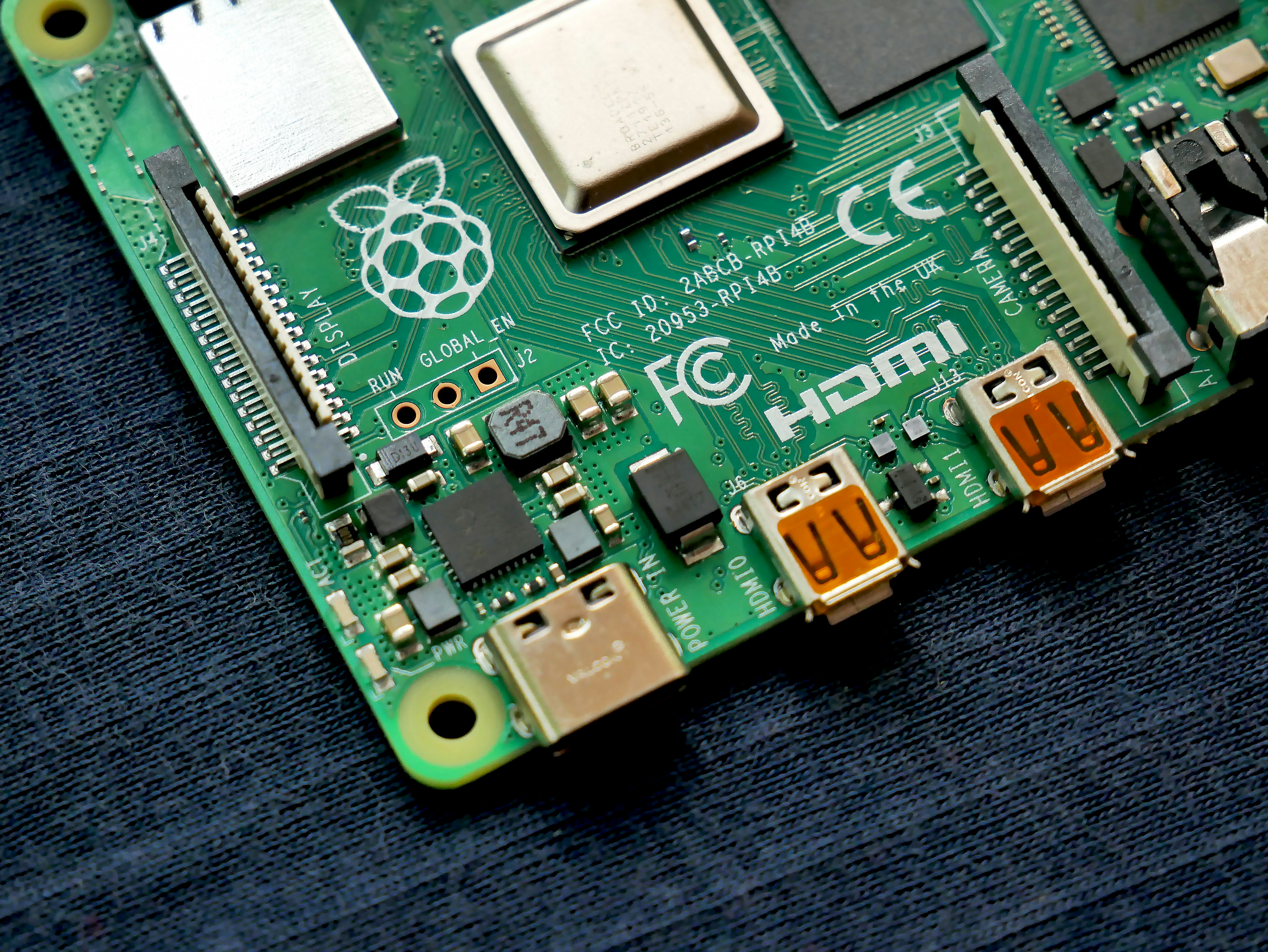
What you need:
- Raspberry Pi 5
- SD CARD (64 gig)
- Mac / Linux
1. OS Installation (Pi Imager)
First, let’s get the "brain" of the Pi ready using the Raspberry Pi Imager.
Insert an SD card to your mac. that a good option would be a 64gig, but you can go higher.
- Download: Pi Imager.
- Device: Open Pi Imager App and Select Raspberry Pi 5.
- OS: Select Pi OS Debian Trixie 64-bit. (or currently available stable OS)
- Customization Settings:
- Host Name:
raspberrypi(⚠️ DO NOT CHANGE!). - Username:
pi(⚠️ DO NOT CHANGE!). - Password:
1234. - Enable SSH: TRUE.
- Host Name:
Other options can be kept as they are.
2. Connecting with Mac
Connecting via Ethernet while using a dedicated power supply is the "gold standard" for stability. It prevents those annoying "brownouts" or handshake issues common with USB-C gadget mode.
2.1. Hardware Connection (Mac Air M4)
- Adapter: Use a USB-C to Ethernet adapter for the Mac.
- Power: Plug the official Pi power supply into the wall and the Pi’s USB-C port.
- Data: Run an Ethernet cable from the Pi to the Mac's USB-C adapter.
2.2. macOS Internet Sharing
This makes your Mac act as a router for the Pi:
- System Settings > General > Sharing.
- Select Internet Sharing (Click the "i"—don't toggle it on just yet).
- Share your connection from: Wi-Fi.
- To computers using: Your USB 10/100/1000 LAN adapter.
- Toggle Internet Sharing On.
You can open your terminal in your mac and use SSH to access your Pi.
SSH into Pi: Run ssh pi@raspberrypi.local from your terminal. Wait a bit. Give your Password. And you should be in.
3. VNC Configuration
Now, let’s get that remote desktop working so you don't have to hunt for a spare monitor.
- Enable VNC: Run
sudo raspi-config, navigate to Interface Options → VNC, and select Yes. -
Viewer (PC/Mac): Download and Open "TigerVNC Viewer".
-
Link:
raspberrypi.local. -
User:
pi. -
Password:
1234.
-
4. Fixing TigerVNC "Color Mess" (Visual Artifacts)
If your screen looks like a neon fever dream (orange/pink artifacts), it's likely just a compression disagreement between the Pi 5 and TigerVNC.
The Fix: Adjust these settings in TigerVNC Viewer:
- Open Options → Compression tab.
- Uncheck "Auto select compression settings".
- Change Preferred encoding to Hextile or Raw.
- Set Color level to Full.
- Go to the Screen tab and uncheck "Allow JPEG compression".
5. Proper Shutdown Sequence
SD cards can be sensitive. Protect yours by following the "look for the red" rule.
- Command: Run
sudo shutdown -h now. - Wait: Your SSH session will close, but do not unplug yet.
- The Watch: Watch the Green LED (ACT); it will flicker while writing logs.
- Safe to Pull: Wait for the LED to turn RED.
Ready to build something real?
Tell us the hardware, the constraint and the deadline. You'll talk to the engineer who'd do the work.
Start a Project